


Android’s Developer Options offer more than animation controls and Bluetooth codec choices. One overlooked setting, “Suspend execution for cached apps,” proved especially useful when I enabled it, reducing the battery drain caused by apps in the background.
Cached apps can drain battery in the background
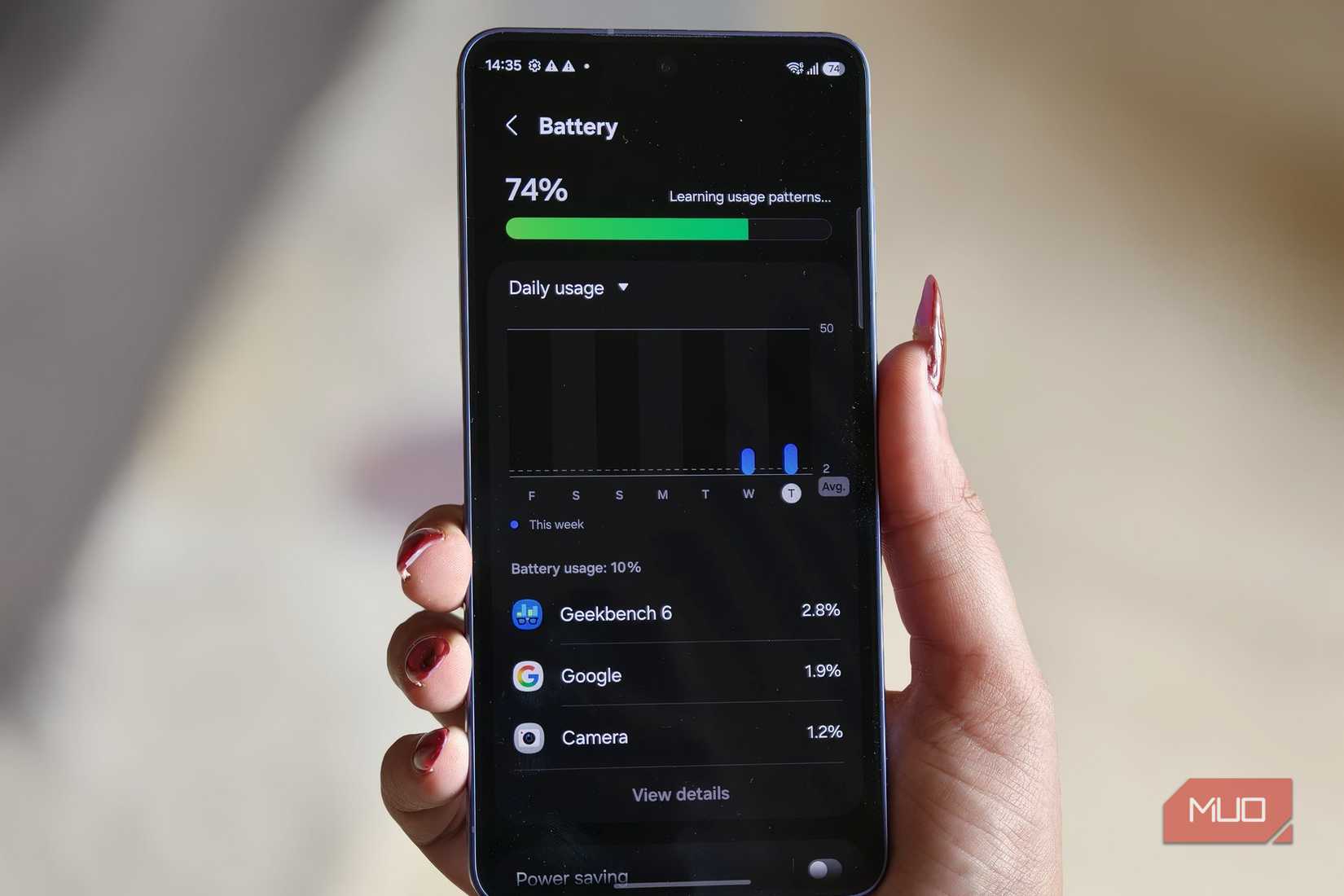
Your apps may be working overtime
Shimul Sood / MakeUseOf
Your Android phone keeps a bunch of apps in memory even after you’ve stopped using them. These apps are cached so they can spring back to life as soon as you switch back to them. The whole idea is to make app switching and multitasking feel smooth, which is great.
The only problem is, these cached apps can also be the reason your phone’s battery drains over time. For instance, if you open Facebook or Instagram and don’t touch it again for another six hours, it can remain alive in the background. And while it's cached, it can still run services or wake up the device periodically.
The overall impact obviously varies from app to app because some apps are less polite than others. But the point is, when you’ve got dozens of apps doing this in the background, they can drain the battery. So if you’ve noticed your phone’s battery draining overnight or even when you haven’t used it much, those cached apps sitting in the background can be the reason.
Now, this doesn’t mean you have to keep clearing the recent apps menu every few minutes. Doing that can actually backfire. Your apps will take longer to reopen and you’ll also miss notifications. The good thing is that you don't have to manage apps manually either. Android already offers a better solution for this, and it’s called Suspend execution for cached apps.
This developer option can stop cached apps from running
Put your apps on pause
Shimul Sood / MakeUseOf
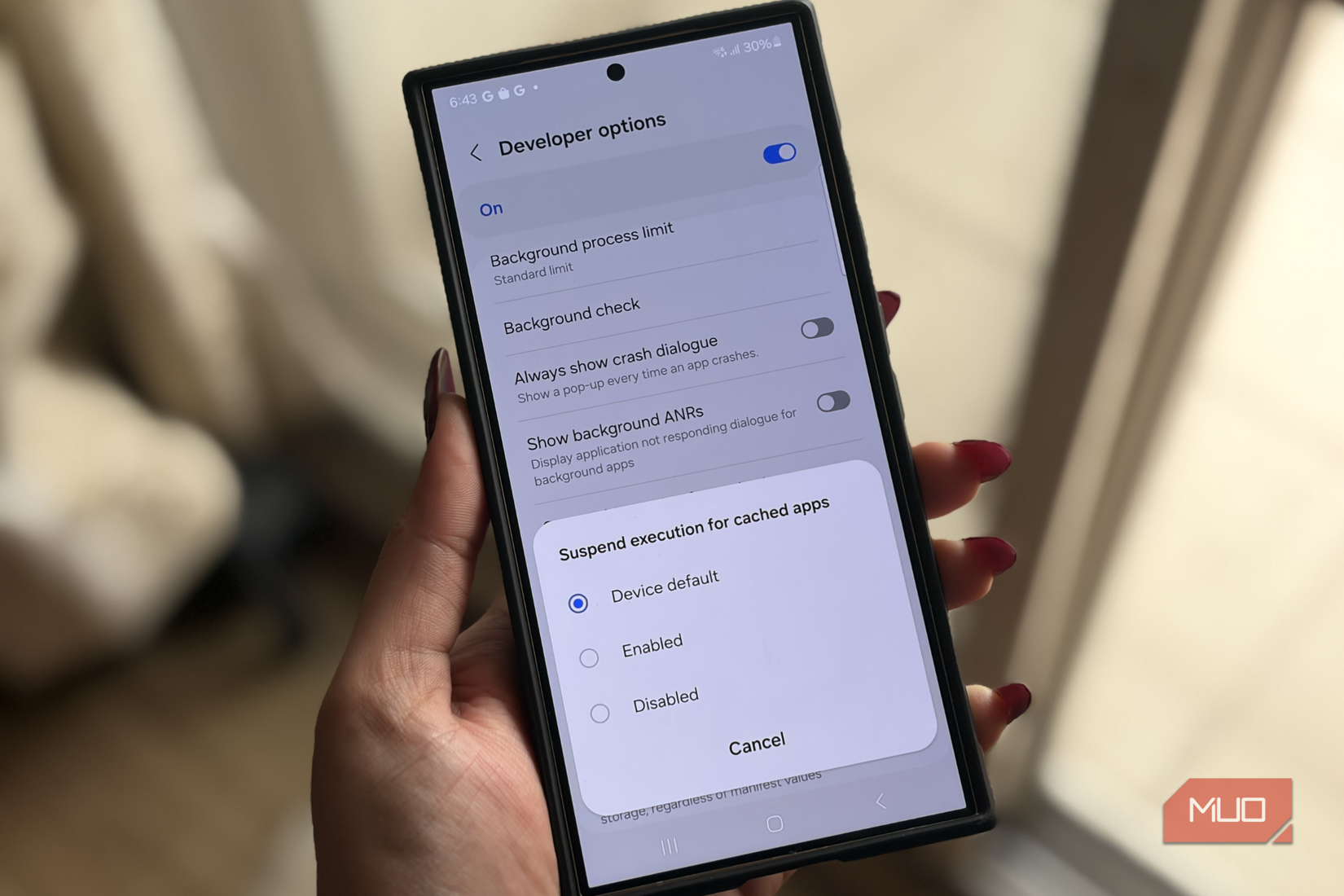
Suspend execution for cached apps does exactly what the name suggests. When an app goes into a cached state, Android freezes it instead of letting it run in the background and wasting CPU power. But as soon as you reopen the app, it’s still loaded from its cached state, which means it's different from an app closing entirely. The app isn’t actually killed. It’s more like Android hits pause on it instead of letting it keep working in the background.
I won’t blame you for not knowing about this one, though. It’s hidden inside Android’s Developer Options menu, so to use it, you’ll need to first unlock the menu on your phone. Head to Settings > About phone > Software information and tap the Build number multiple times quickly. Once the menu is unlocked, return to the main Settings page, tap Developer Options > Suspend execution for cached apps, and set it to Enabled.
I’ll be honest, I didn’t expect much from this setting, but it actually delivered. Before enabling it, my phone would drain close to 7-10% battery overnight. After turning it on, that number dropped to somewhere close to 1-2%. So yes, this was a significant win. The daytime improvement was harder to measure, but I did notice an improvement there too.
The best part here is that you don’t have to manage battery settings for dozens of apps on your phone or constantly close them manually. This also helps with overall performance. Since Android is no longer wasting CPU on background apps, more of it gets allocated to whatever you’re actually doing.
You can make exceptions if you want
Give your important apps a pass
Suspending execution for cached apps is great for the battery life. The only problem is, it’s a blanket toggle, so once it’s on, it applies to apps across the board. There’s no menu inside where you can pick and choose which apps to leave out. While that’s not exactly a problem, it can sometimes cause certain apps to stutter when you reopen them. Another thing is that suspending apps can delay notifications in some cases.
Personally, I haven’t experienced any of this, but it can happen. The good thing is that you can fix it by managing battery permissions for affected apps. Head to Settings > Apps and select the app in question. Go to Battery and choose Unrestricted. Go back to the app info page, tap Mobile data, and enable Allow background data usage.
You can repeat this for other apps and those won’t be suspended when in a cached state. It’s a workaround rather than a true exception built into the freezer feature, but it gets you the results you actually need.
ADVERTISEMENT
 More Recommendations


